


Why DFC Bridge matters
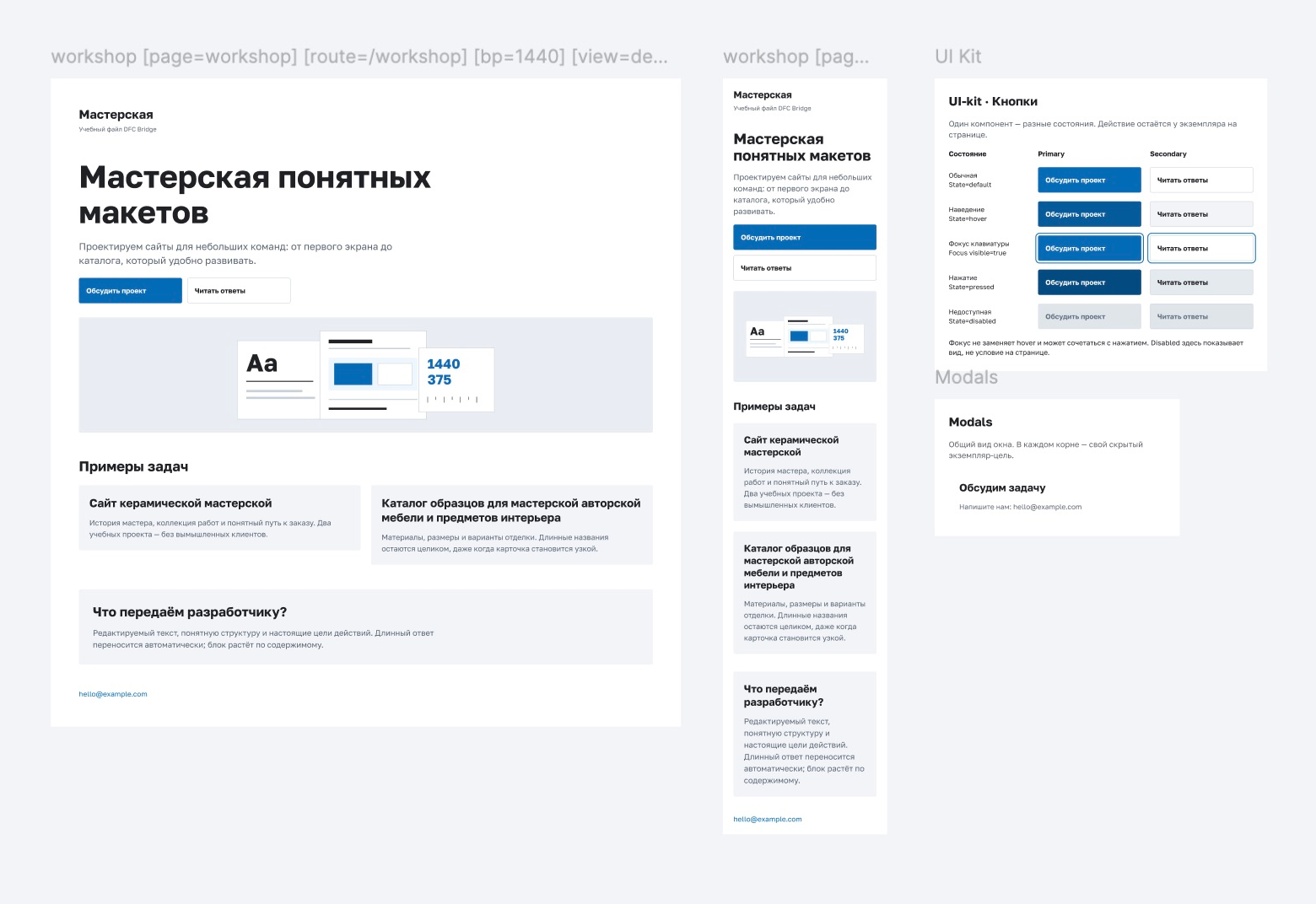
The design—desktop and mobile:
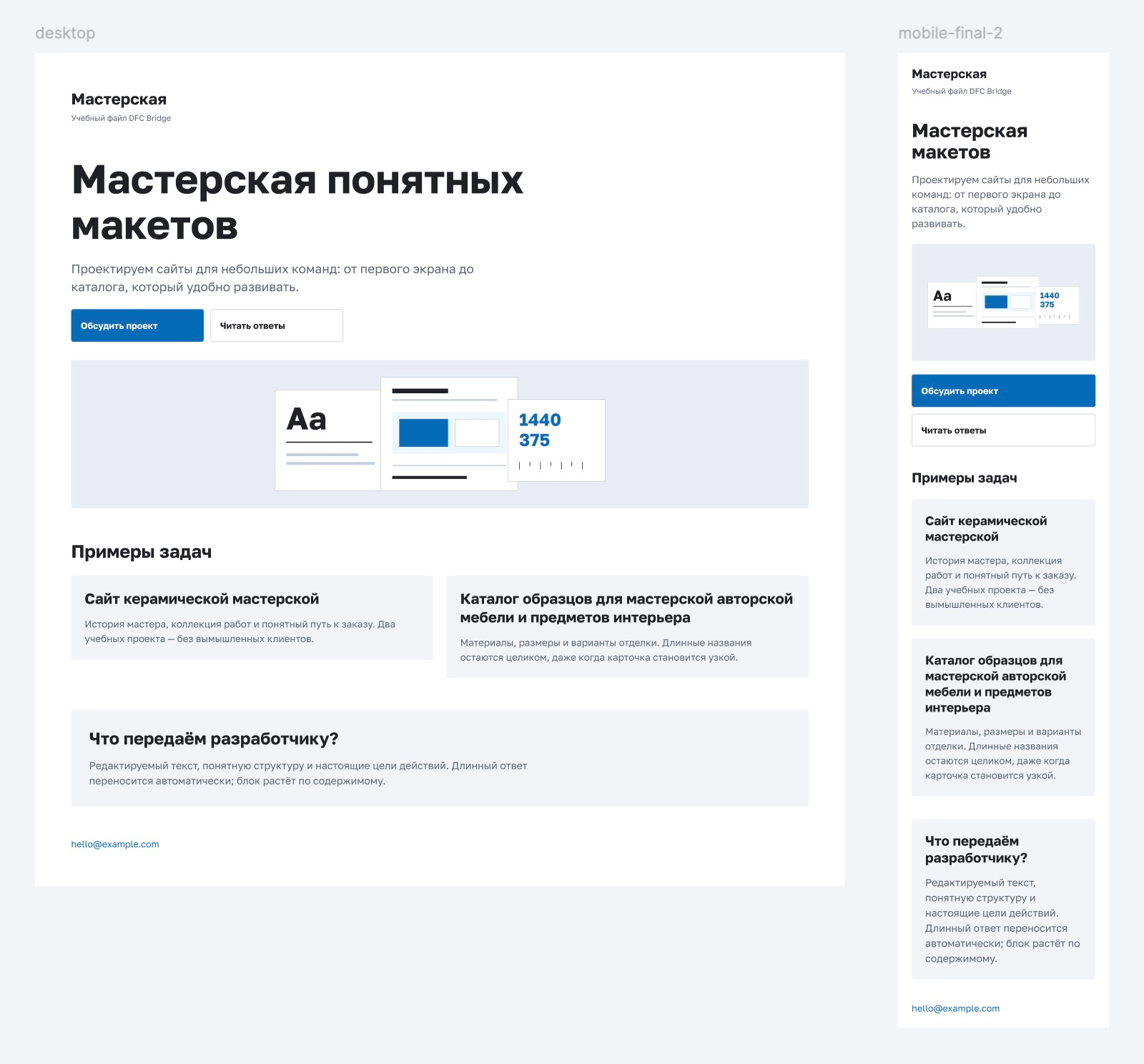
The design looks good. Frontend, backend and AI still guess: what to build, where data comes from and where buttons lead.
DFC Bridge does not dictate design. Hand off decisions, not guesses.
- Open Figma.
- On the home screen, click Import.
- Choose the downloaded
.fig.
1. Looks good. Still unclear
Section titled “1. Looks good. Still unclear”desktop and mobile-final-2. One page or different screens? The names do not say. The team fills the gaps.
Compare both trees. Which heading and button are the same element?
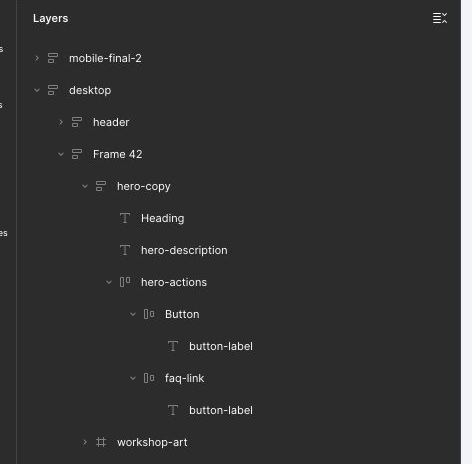
Heading / Button.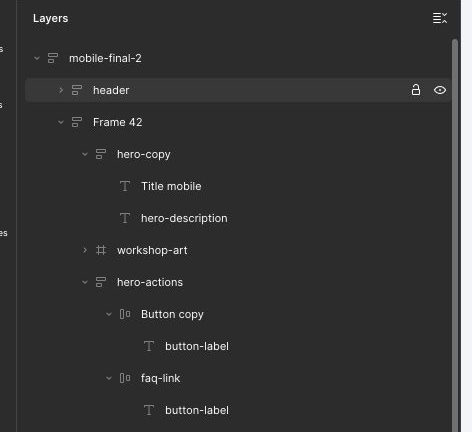
Title mobile / Button copy.Two more “looks better on mobile” decisions:
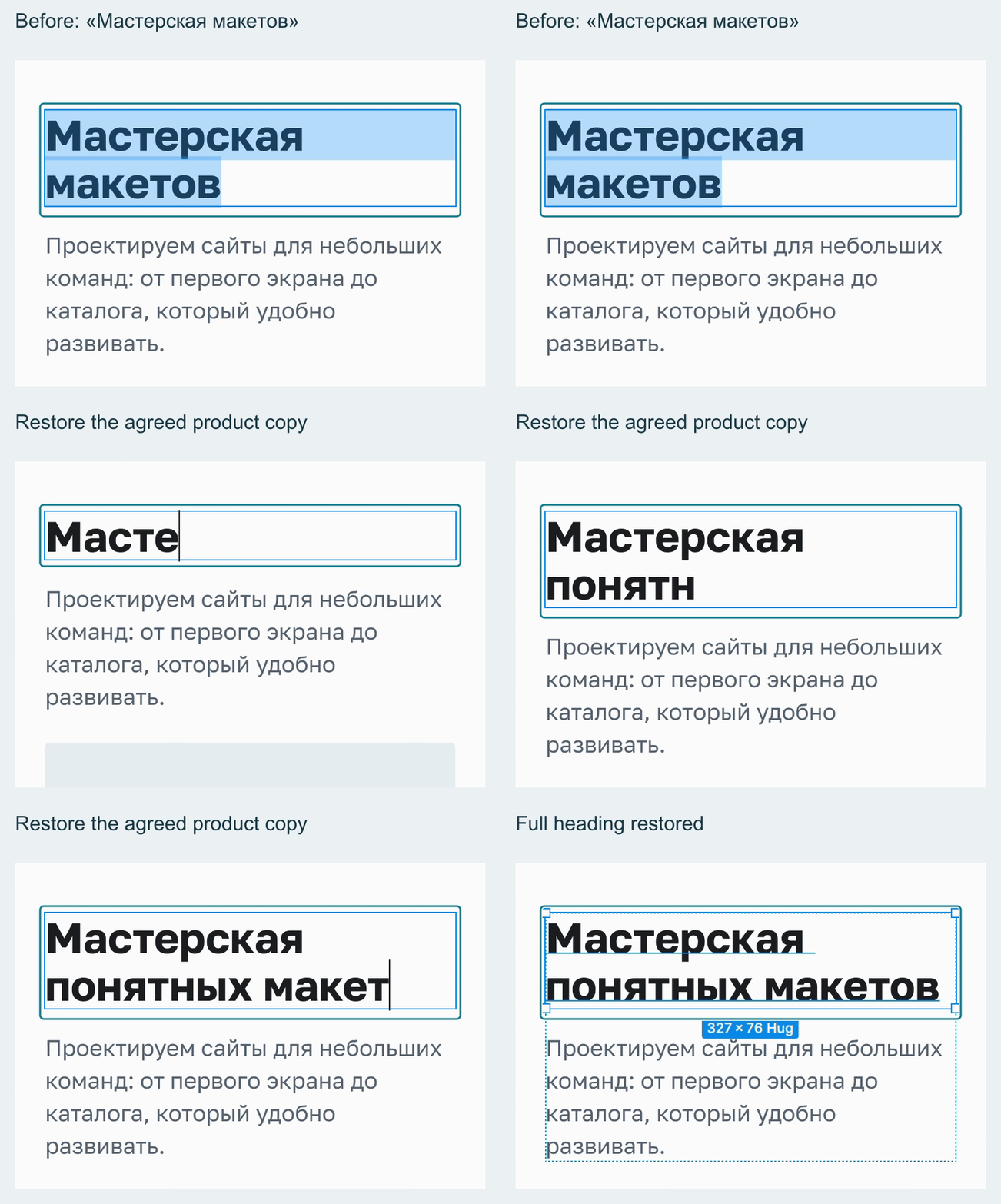
- «Мастерская понятных макетов» → «Мастерская макетов». Changed content, not line wrapping.
- Moved all of
hero-actionsfromhero-copytohero, after the image. Changed parent, not just order.
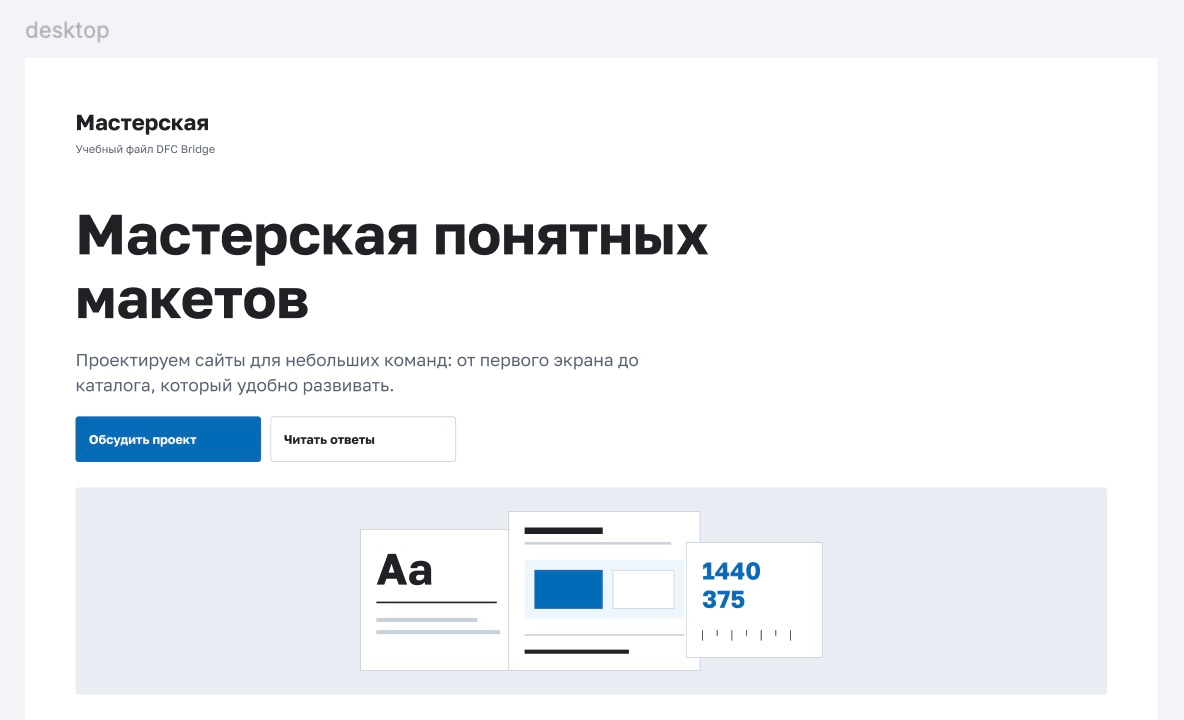
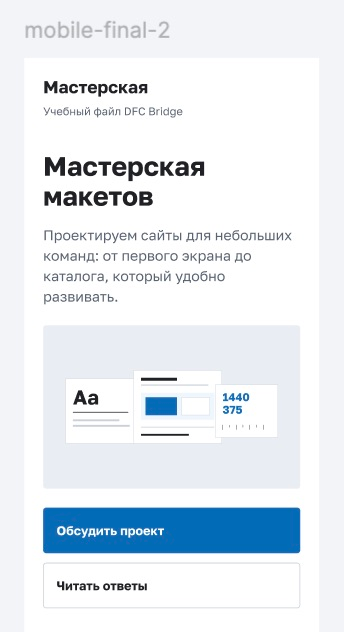
Agree on the copy variant and describe the move. Here neither is declared: frontend and AI guess.
2. Connected the screens
Section titled “2. Connected the screens”Agreed: one workshop page, /workshop route, default view, widths 1440 and 375. Recorded on the roots:
workshop [page=workshop] [route=/workshop] [bp=1440] [view=default]workshop [page=workshop] [route=/workshop] [bp=375] [view=default]Separate continuous Figma recordings. Automated character-by-character input and Cut/Paste; the mouse pointer does not follow actions. Captions and highlights are added.
Details: “View fullscreen” below → “Original size”.
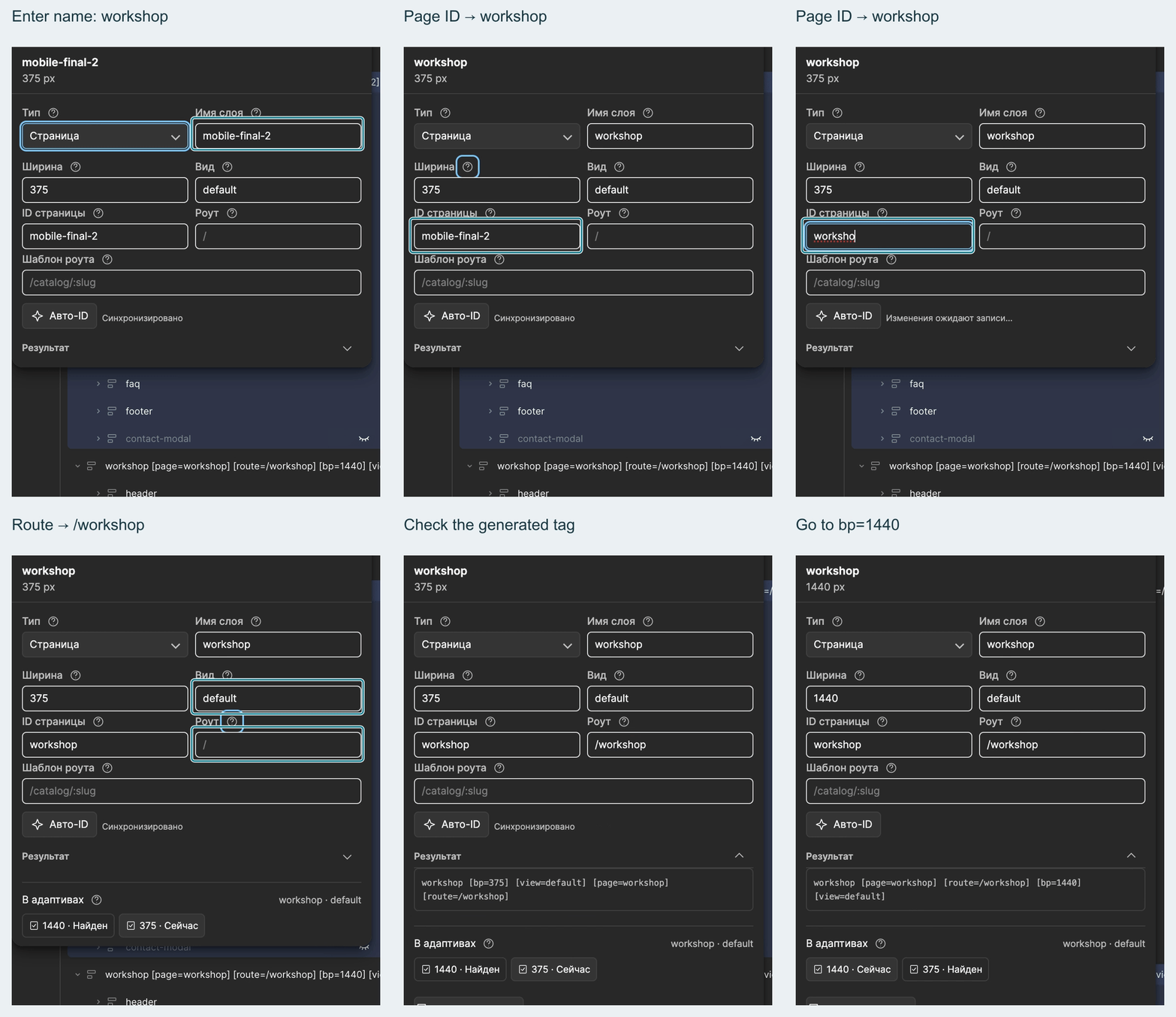
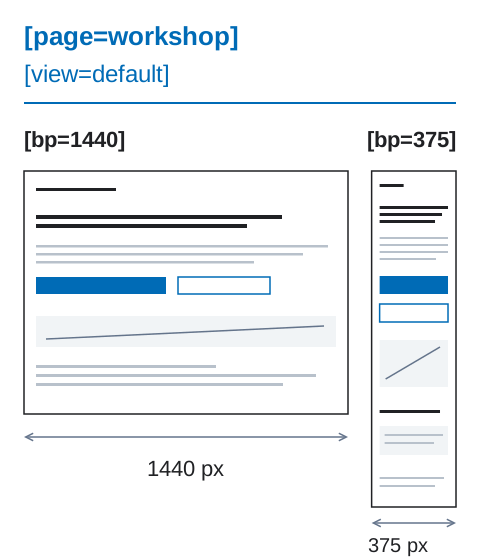
Frontend knows what to build. AI stops hunting for the “most final” screen. Tags describe the agreement; they do not create layout or code.
3. Found the same elements
Section titled “3. Found the same elements”Named by role, not device. Frontend and AI can now match elements:
| Before at 1440 / 375 | After at both widths |
|---|---|
Heading / Title mobile |
hero-title |
Button / Button copy |
contact-button |
Here we chose shared copy and parent. This is not the only way.
Title mobile → hero-title. Name, not copy. GIF.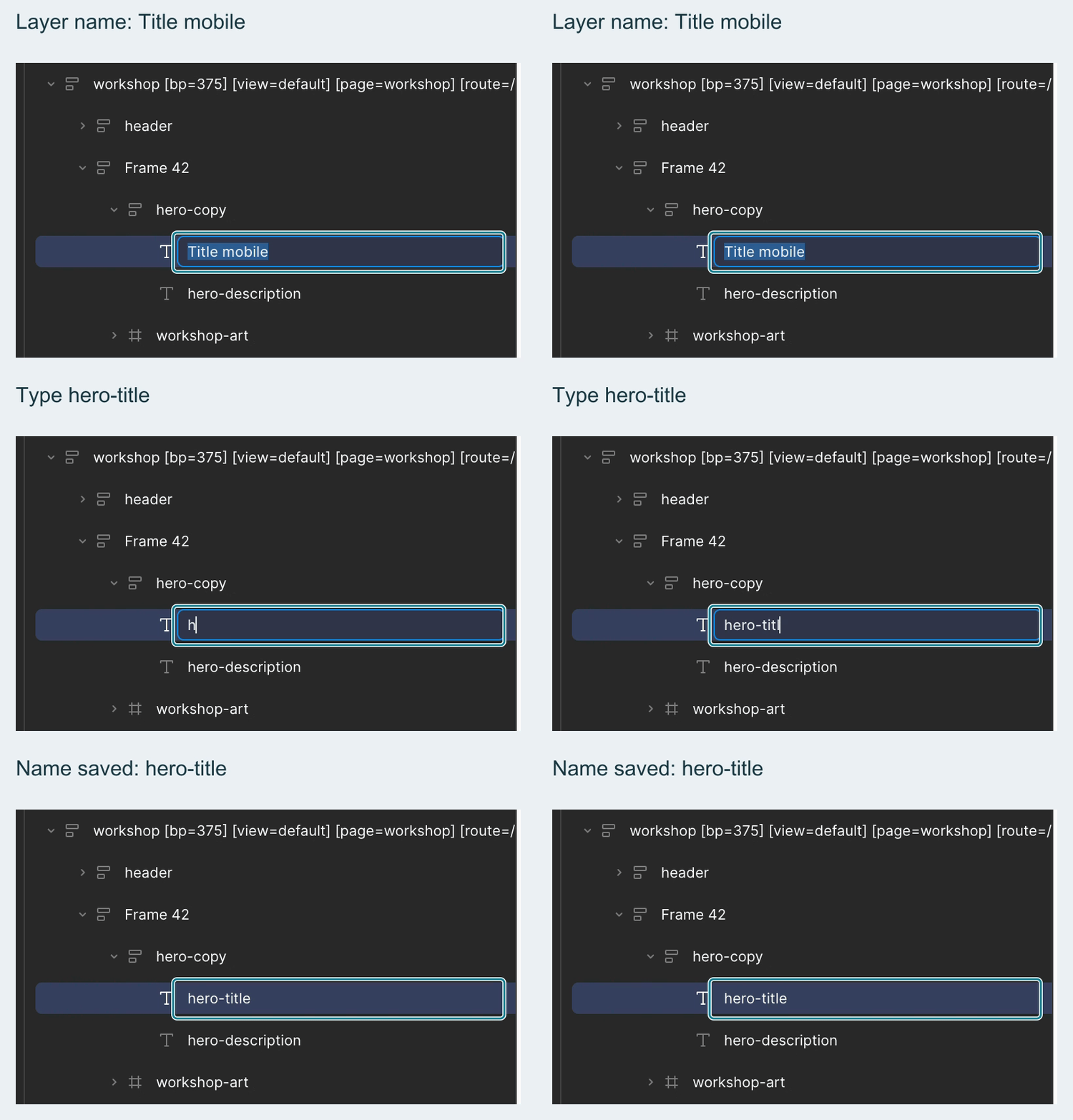
hero-actions → hero-copy. Not one button. GIF.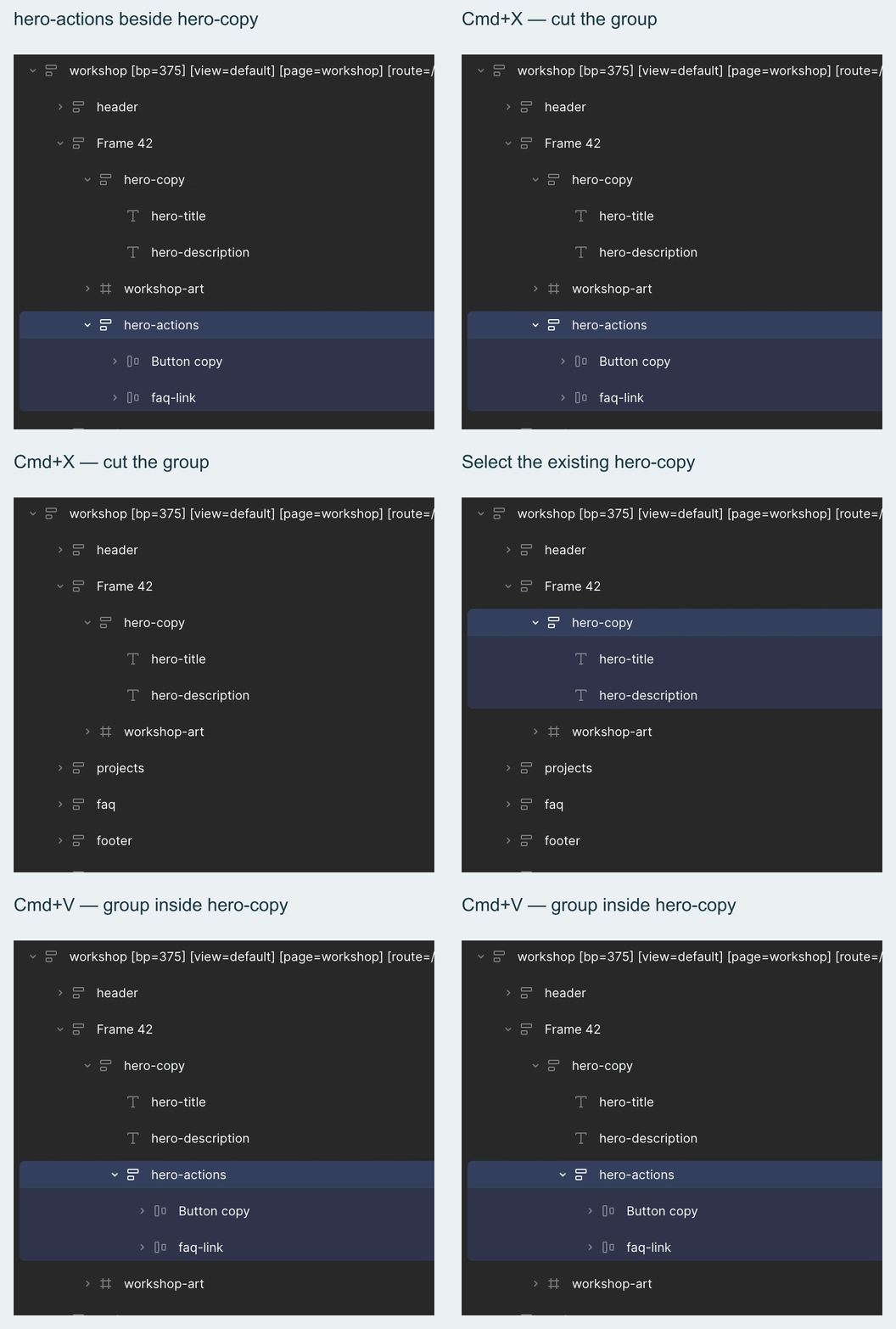
Different copy needs an agreed product variant. A different parent needs a declared transformation. Reordering within one parent is allowed.

Desktop buttons sit side by side; mobile buttons stack. Different layouts are fine: Auto Layout changes; text and parent stay the same here.
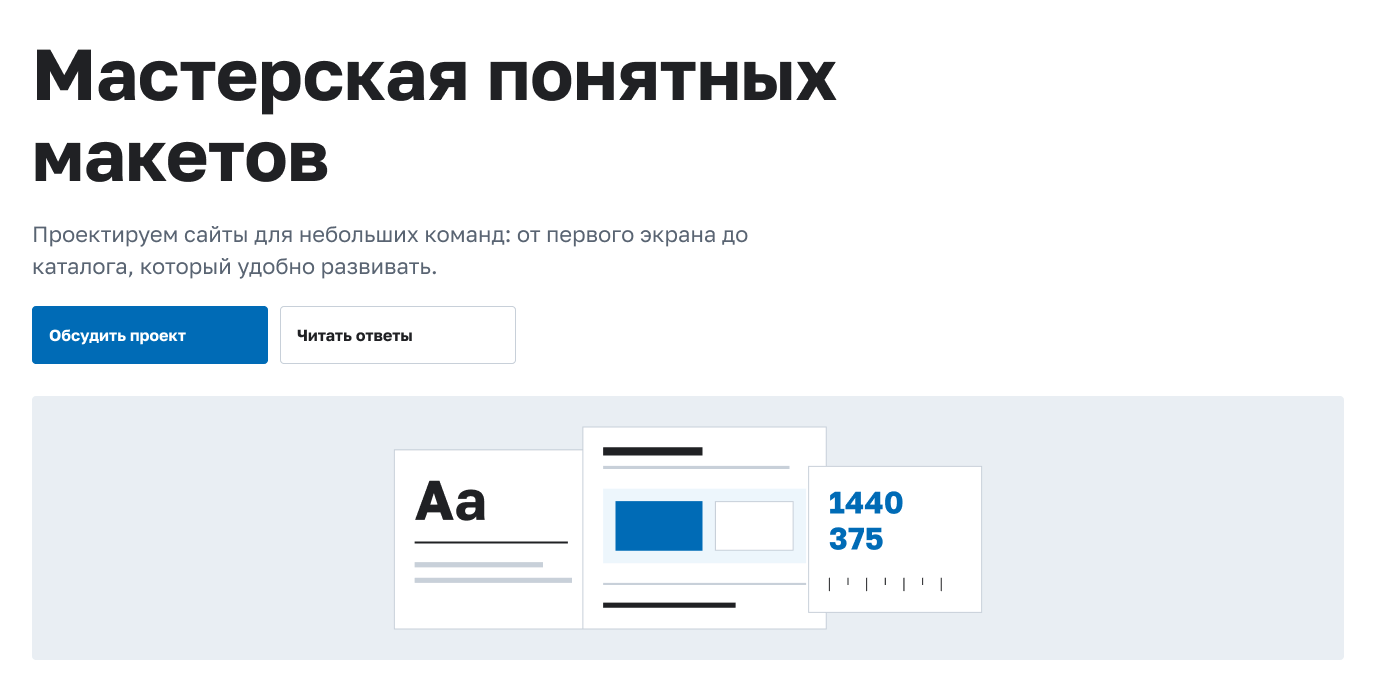
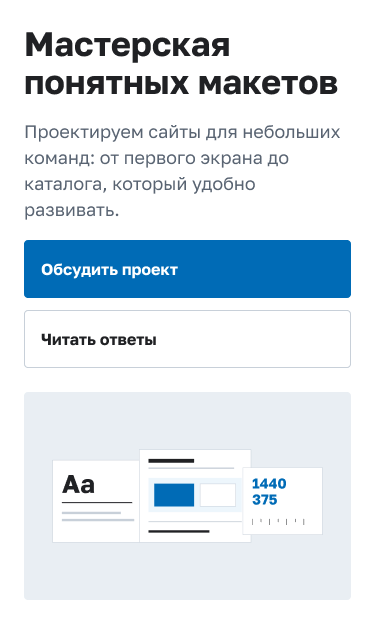
The heading stays text. workshop-art [decor] [asset] stays one image. Do not flatten the interface into PNG.
4. Built a shared library
Section titled “4. Built a shared library”button-primary and button-secondary became shared components. Edit the source; instances update. No fixing every copy.
UI-kit shows both styles’ states; Modals holds the shared modal appearance. Frontend and AI see examples, not gaps to fill.
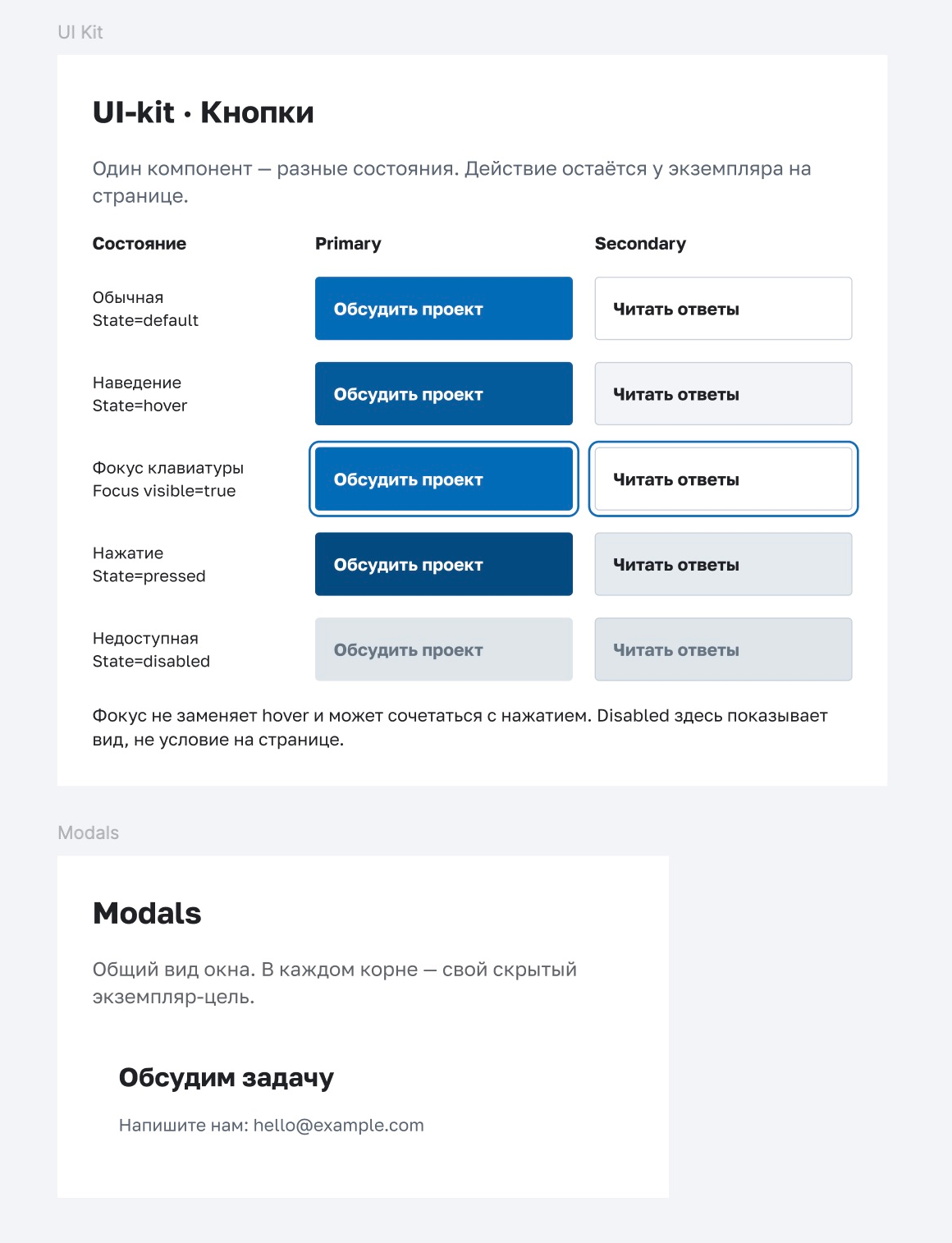
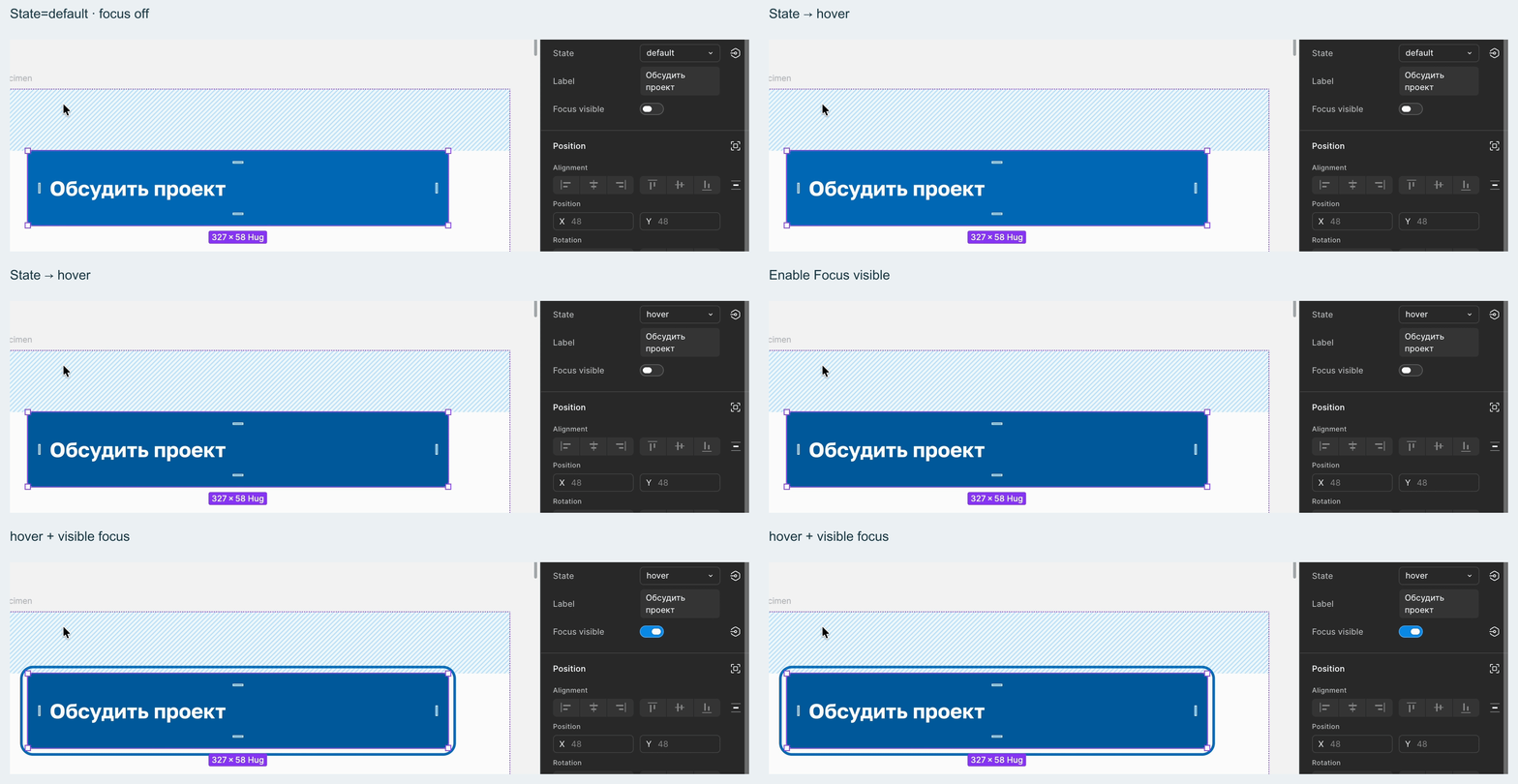
Appearance in the library. Action on the page instance. The same button elsewhere can do something different.
contact-button [action=modal:contact-modal]→ open the modal.faq-link [href=#faq]→ go to FAQ.

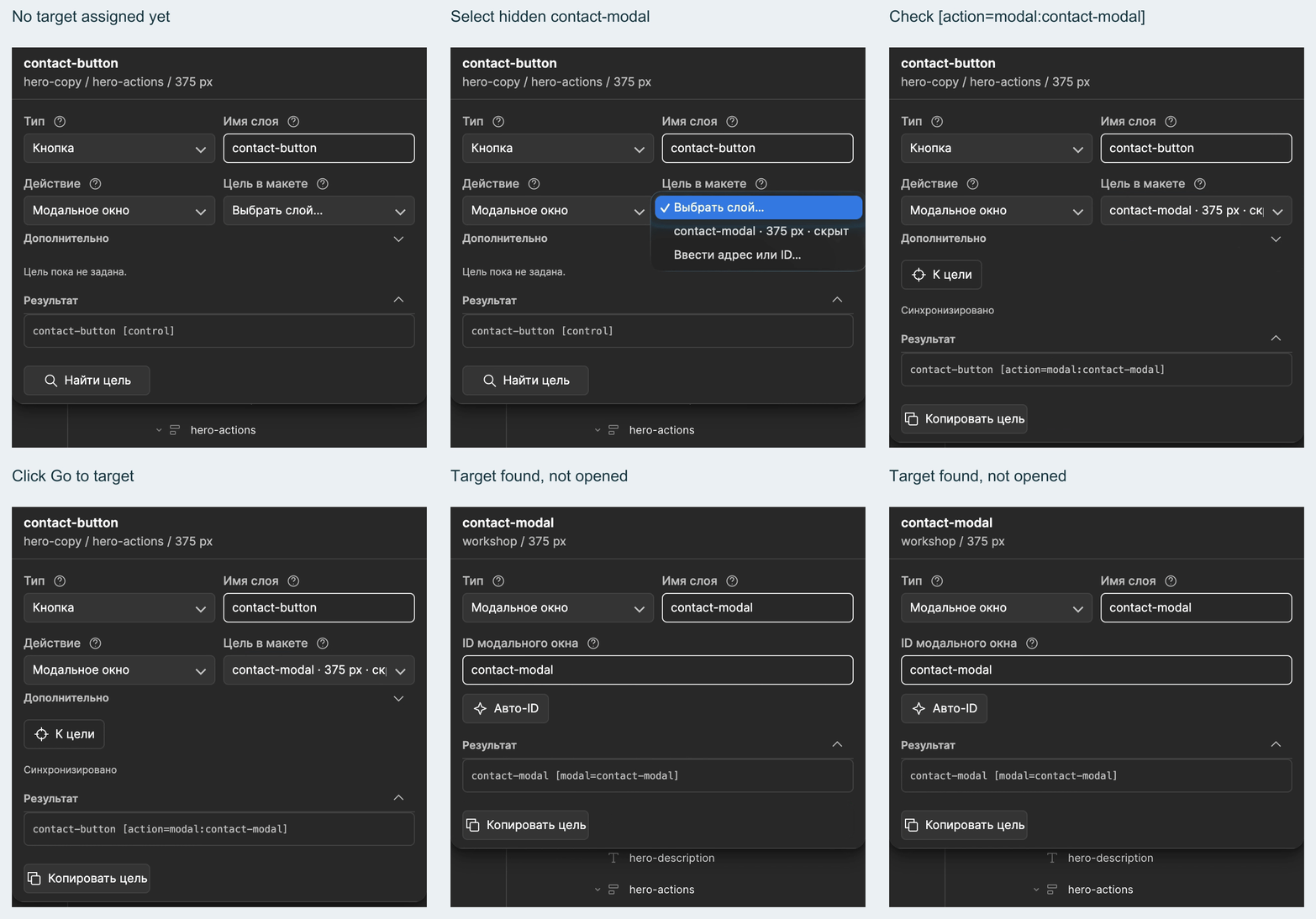
Show target finds the hidden layer; it does not open the modal. Behavior still needs implementation.
How the components work
Examples, not a working prototype.
State=default/hover/pressed/disabled are Figma variants, not DFC tags or page views. Focus is independent: Focus visible=true can coexist with hover and pressed.
The disabled condition and owner belong in the implementation contract. No loading state: modal and anchor, not an asynchronous request.
Each root has its own hidden [modal=contact-modal]. The main component in Modals is the appearance source, not another target. Email details, not a submission form.
Record the source and agreements in the data contract.
5. Checked the result
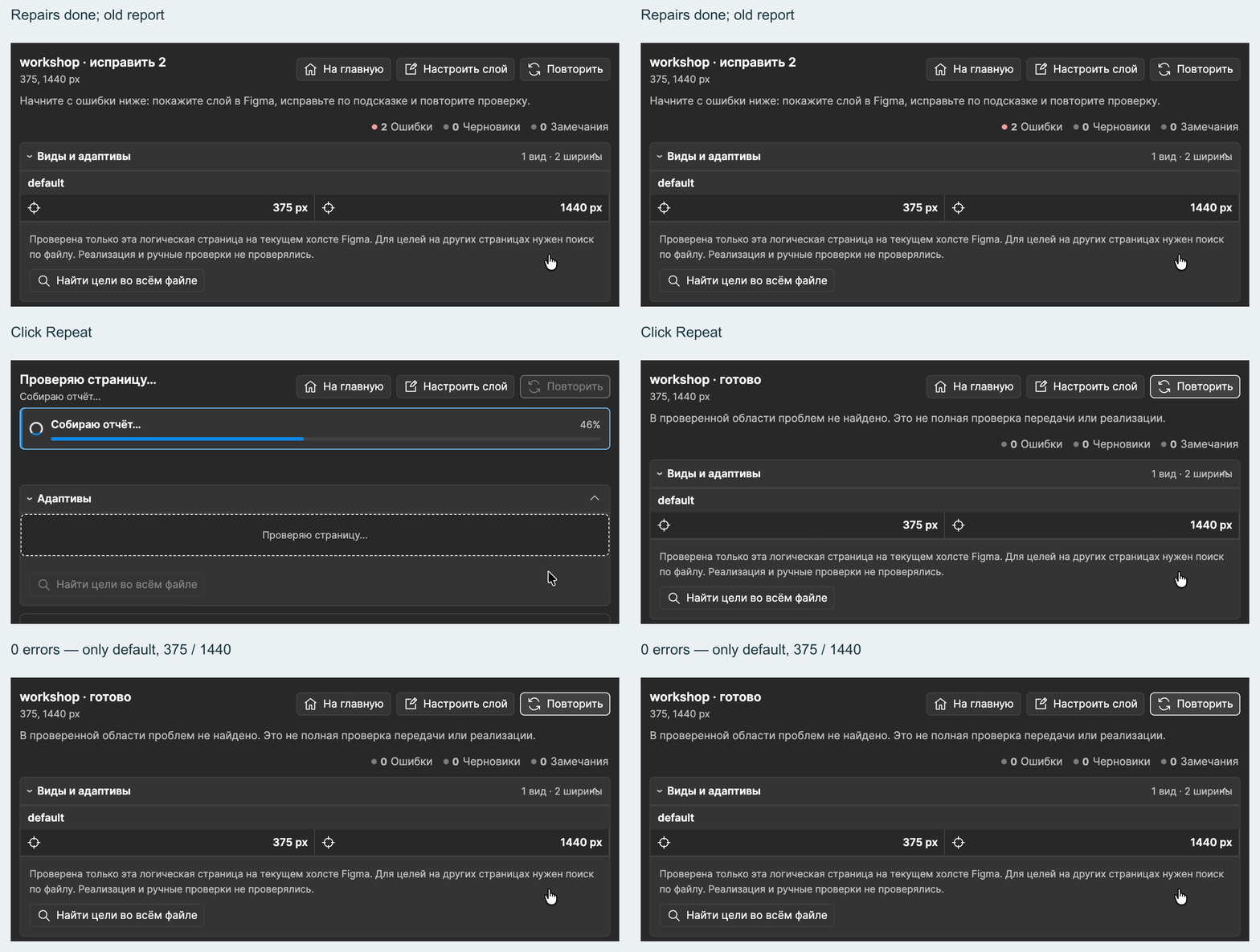
Section titled “5. Checked the result”Separate copy: different hero-title text and hero-actions parent. Auto Layout stays enabled. Repairs are not shown. The clip shows the old report and Repeat.
Page 02 shows this solution with UI-kit and Modals.
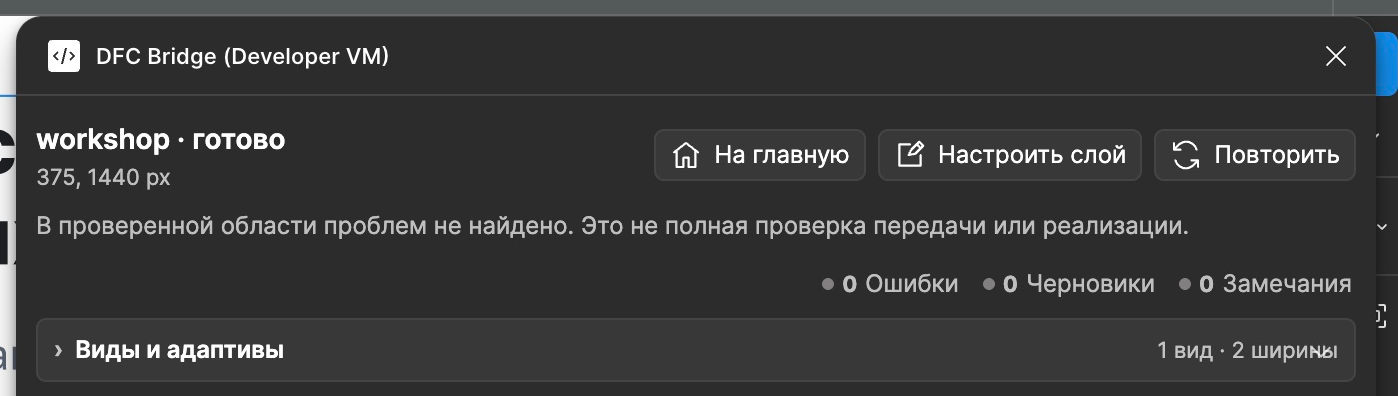
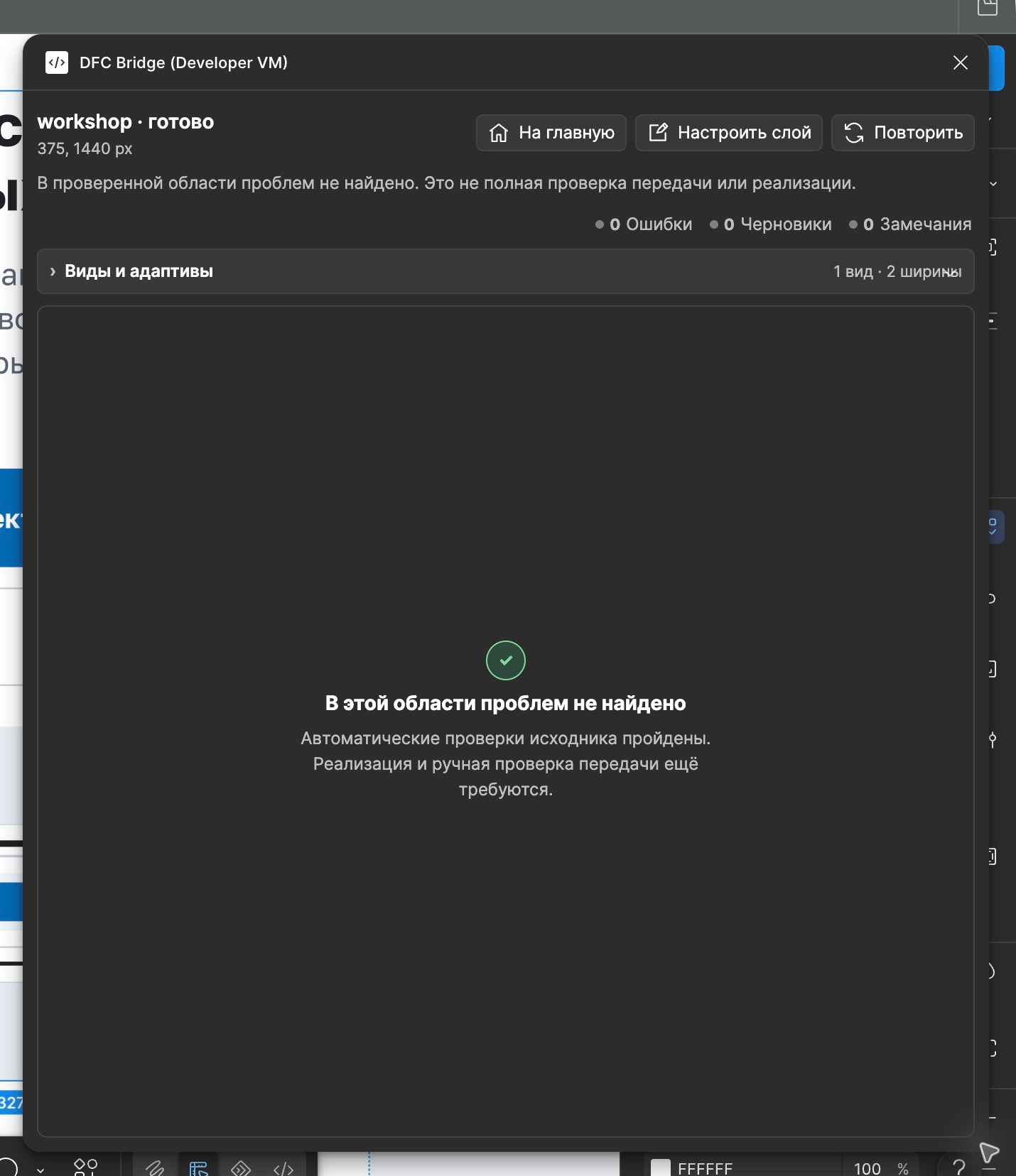
“Ready” means the checked design scope, not a finished application.
Hand off source, assets and agreements. Open questions have owners. Not one PNG and “it’s all obvious”.
Next, as needed
Section titled “Next, as needed”- Handoff checklist.
- Content and overflow — preparation best practices.
- New section in an old design.
- Views and variants.
- Accessibility.
Demo design. Captures from Figma; Assistant is a local build. Penguins are generated; team questions are examples. Verification notes.