


DFC Bridge examples
Use these short recipes when a design question is concrete. Each example has one problem, one correction, and one reason. Choose the example that matches your current problem; you do not need to read them in order.
A visual introduction to handoff decisions: team questions, reasons and real Figma captures.
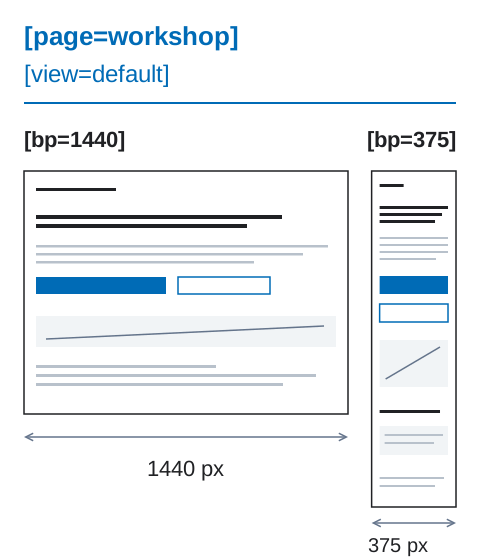
1. Page and widths
Section titled “1. Page and widths”Problem: the file has unrelated desktop and mobile-final-2 roots.
Use:
home [page=home] [route=/] [bp=1440] [view=default]home [page=home] [route=/] [bp=375] [view=default]The same [page] and [view] connect the prepared widths. [bp] records the width shown by each root.
2. One name across widths
Section titled “2. One name across widths”Problem: hero-title-mobile looks like a new element.
Use:
hero-titleThe size or position can change. The stable name keeps the same logical element recognizable.

3. A page section
Section titled “3. A page section”Use [section] for a section built directly in the page:
product-results [section=product-results] product-grid [collection=products]An instance from the Page Sections library already has a source component. Do not repeat the section key unless the local frame really is the section boundary.

4. Link or interface action
Section titled “4. Link or interface action”Use [href] when the user navigates and [action] when the current interface changes:
catalog-link [href=/catalog]filter-button [action=state:filters-open]Do not use a fake href for a button or a fake action for a normal link.

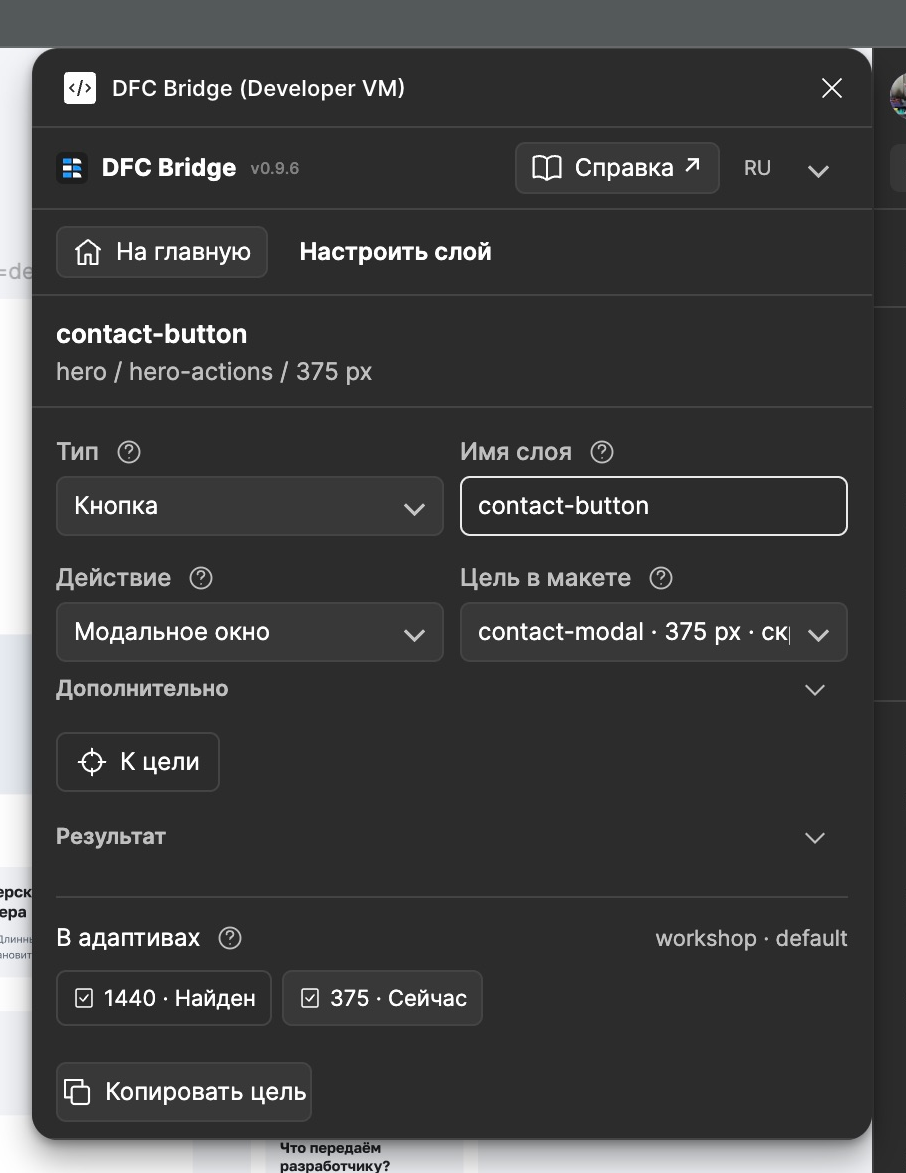
5. Button and modal
Section titled “5. Button and modal”The action points to the modal’s stable identifier:
contact-button [action=modal:contact-modal]
contact-modal [modal=contact-modal]  modal-title  close-button
The same UI Kit button can have different actions in different contexts. The action belongs to the instance in the page, not to the shared component name.
6. Meaningful structure
Section titled “6. Meaningful structure”Problem: nearby layers are grouped only because they were selected together.
Use:
hero hero-copy hero-title hero-subtitle hero-actions contact-buttonEach wrapper has a real job: content, layout, clipping, background, or interaction area. Detailed layout policy is in design rules and wrapper policy.
7. Real content
Section titled “7. Real content”Show the data that can change the layout:
product-card product-title product-price product-imageCheck short, long, empty, loading, and error states. Do not replace changing content with a picture of the final composition.

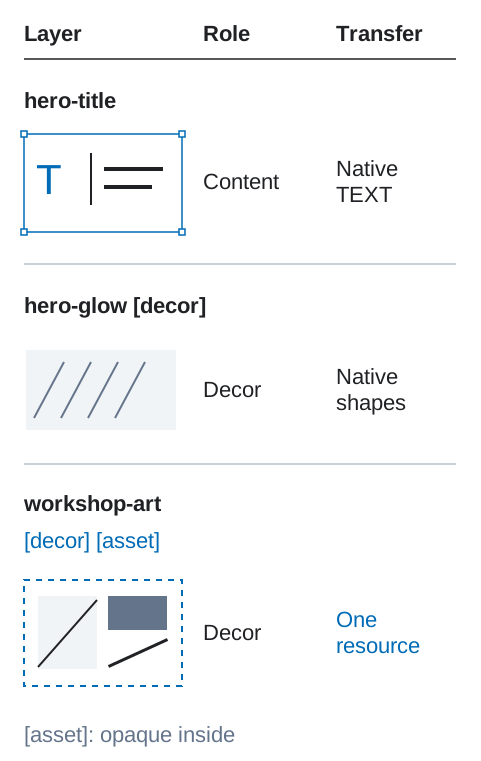
8. Content, decoration, and export
Section titled “8. Content, decoration, and export”Use the smallest clear policy on the exact visual layer:
product-imagehero-glow [decor]campaign-illustration [asset][decor] describes visual purpose. [asset] says that the visual is transferred as one resource. A layer can use both when both statements are true.
How to use this catalog
Section titled “How to use this catalog”Find the question that matches your file and apply the smallest relevant pattern. Then use the designer checklist to review the chosen handoff scope.
Layer names are not the place for an entire behavior specification. When the design needs data, reactions, motion, or accessibility, describe those decisions in the structured transfer contract. Use the executable validator/examples/bridge-contract.valid.json file in the repository as the starting point; the article’s illustrative excerpt and individual module fragments are not a complete handoff.